 Storemast
Guide
How to create an App Store Connect API key
By the Storemast team · Last updated
TL;DR
In App Store Connect, go to Users and Access › Integrations › App Store Connect API › Team Keys, click +, name the key and choose a role (App Manager is the usual choice for a release tool). Download the .p8 file straight away: Apple only lets you download it once. You'll also need the key ID (next to the key) and the issuer ID (above the list).
The App Store Connect API lets tools work with your apps without your Apple Account password: CI systems upload builds with it, scripts read sales reports with it, and apps like Storemast use it to show review status, release versions and answer reviews. Access is granted with an API key. This guide walks through creating one, choosing its role, and keeping it safe.
What you'll end up with
An App Store Connect API team key comes as three pieces. Any tool that uses the API will ask for all three:
| Piece | Looks like | Where to find it |
|---|---|---|
| Issuer ID | A UUID, e.g. 57246542-96fe-1a63-e053-0824d011072a | Above the Team Keys list. One per team. |
| Key ID | 10 characters, e.g. 2X9R4HXF34 | In the key's row, and in the .p8 file's name. |
| Private key | A file named AuthKey_2X9R4HXF34.p8 | Downloaded once, when you create the key. |
(The examples are made up.) The private key is the secret part. The issuer ID and key ID are identifiers; on their own they can't do anything.
Step by step
- Open Integrations. Sign in to App Store Connect as the Account Holder or an Admin. Open Users and Access, then the Integrations tab, and choose App Store Connect API in the sidebar.
- Request access, the first time only. If your team has never used the API, the Account Holder sees a button to request access and accept the terms. Once Apple enables it, Admins can create keys too.
- Generate a team key. Under Team Keys, click + (Generate API Key). Give it a name that says what it's for, such as Storemast – my iPhone or CI uploads, and choose an access role (see below). Click Generate.
- Download the .p8 file now. The new key shows a Download link. Apple lets you download the private key once; after that the link disappears. Save
AuthKey_KEYID.p8somewhere safe. - Copy the key ID and issuer ID. The key ID is in the key's row. The issuer ID is shown above the list; click Copy.
- Add the key to your tool. In Storemast, choose Connect App Store Connect, paste the issuer ID and key ID, then open the .p8 in the Files app, copy all of it (from
-----BEGIN PRIVATE KEY-----to-----END PRIVATE KEY-----) and tap Paste. Storemast checks the key by listing your apps before it saves.
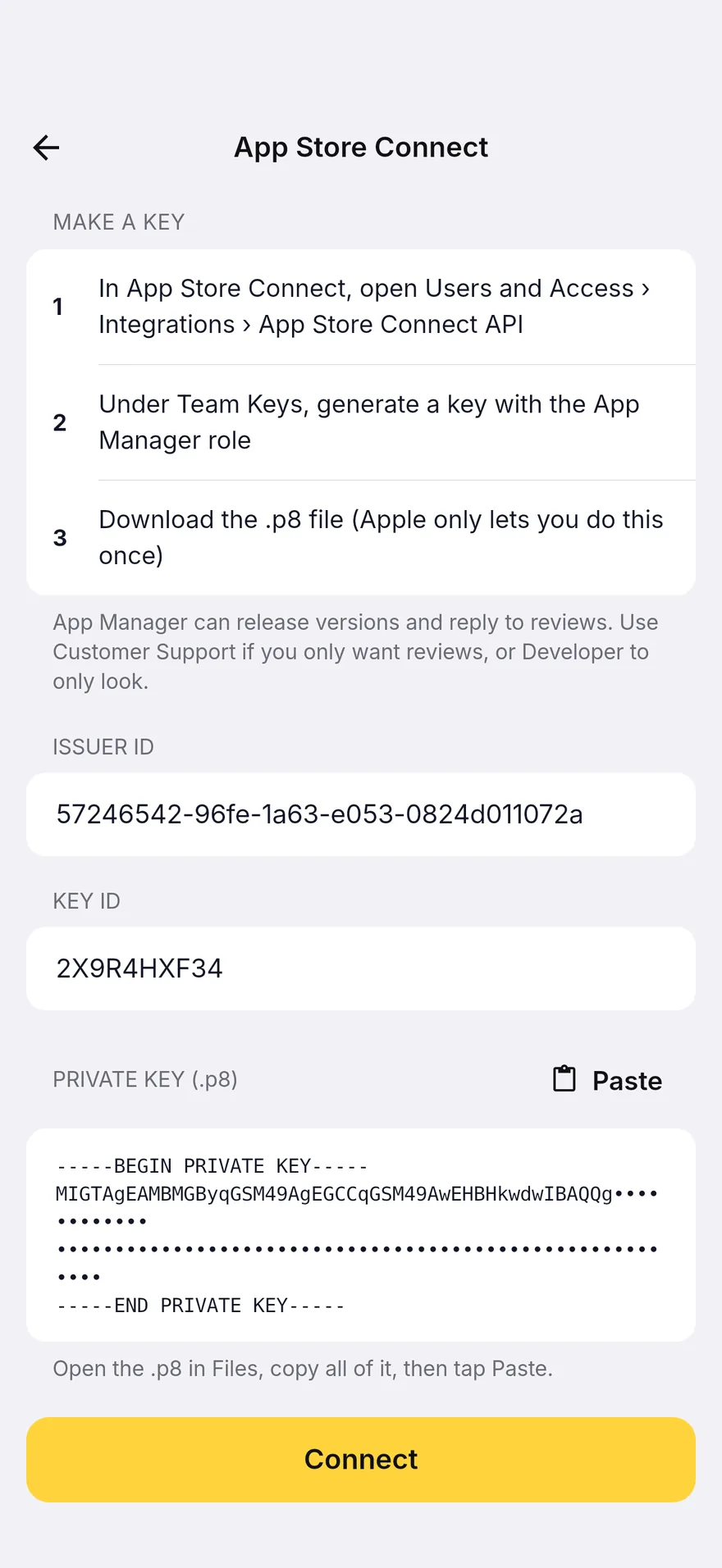
Which role should the key have?
A team key gets one role, and Apple checks it on every request. Pick the lowest role that does the job. These are the roles that matter for a release and review tool; Apple's documentation has the full permissions table.
| Role | What it allows that matters here | Good for |
|---|---|---|
| Admin | Everything an App Manager can do, plus managing users and keys. | Rarely needed for a tool. Avoid unless you must. |
| App Manager | Edit app information and versions, submit for review, release versions, manage phased releases and TestFlight, respond to reviews. | Storemast with releases, rollouts, What's New and replies. |
| Developer | See apps and builds and work with TestFlight; can't release versions or reply to reviews. | Watching status and builds only. |
| Customer Support | Read and respond to customer reviews. | Someone who only answers reviews. |
| Finance, Sales, Marketing | Reports and sales information. | Not useful for Storemast. |
If you're unsure, App Manager is the usual middle ground: it can do everything Storemast offers without being able to manage your team or create more keys. Storemast's Look only mode is a second guard: it hides every button that changes something on that phone, whatever the role.
Keeping the key safe
- One key per use. Make separate keys for CI, scripts and each phone. If one leaks, you revoke it without breaking the others.
- Move the .p8 carefully. AirDrop it to your iPhone or put it in a private folder in Files, paste it into Storemast, then delete the copy. Avoid email and chat.
- Never commit it. Keep .p8 files out of Git repositories; use your CI's secret store.
- Know what a tool does with it. Storemast keeps it in the iOS Keychain and uses it only on the phone to sign requests to Apple; there's no server that receives it. See how Storemast handles your key.
How the key is used
A tool never sends the .p8 file to Apple. Instead it signs a short JSON Web Token (JWT) with the key using ES256, puts the key ID in the token's header and the issuer ID in its payload, and sends the token with each request. Apple accepts tokens that last up to 20 minutes, so tools make fresh ones as they go. If anything about the three pieces is wrong (an extra space in the issuer ID, a key ID from another key, an incomplete .p8), Apple answers with 401 Unauthorized. A 403 Forbidden usually means the key works but its role is too low for what you tried.
Revoking a key
Go back to Users and Access › Integrations › App Store Connect API, find the key and choose Revoke. Revoking is immediate and permanent: every tool using that key stops working at once, and the key can't be restored. Do it when:
- a phone with the key is lost or sold,
- someone who had the .p8 leaves the team,
- you've stopped using the tool, or
- you need a different role (make the new key first, then revoke the old one).
Removing the key in Storemast's Settings deletes it from your phone, but only revoking it in App Store Connect makes it useless everywhere.
Troubleshooting
- No Integrations tab or no API section: you're not the Account Holder or an Admin, or the team hasn't requested API access yet.
- The key is refused when you paste it: make sure you copied the whole .p8, including the BEGIN and END lines.
- 401 errors: check the issuer ID and key ID belong to this key and team. If you're in several teams, each team has its own issuer ID.
- Some apps are missing: team keys see all of the team's apps; a different team's apps need that team's key.
Questions
Who can create App Store Connect API keys?
The Account Holder and users with the Admin role. The Account Holder has to request API access for the team the first time.
I lost the .p8 file. Can I download it again?
No. Apple only lets you download a private key once. Revoke the old key and generate a new one.
Do API keys expire?
Team keys don't expire on their own; they work until you revoke them. The tokens signed with them are short-lived: at most 20 minutes.
What's the difference between a team key and an individual key?
A team key belongs to the team and has the role you choose when you create it. An individual key belongs to one user and acts with that user's role. Storemast uses team keys, which need an issuer ID.
Can I change a key's role later?
Apple doesn't let you edit a key's role after creating it. Generate a new key with the role you want and revoke the old one.
Which role do I need to reply to reviews only?
Customer Support. It can read and respond to customer reviews without being able to release versions.