 Storemast
Guide
Google Play Console, explained for iOS developers
By the Storemast team · Last updated
TL;DR
Play Console is Google's App Store Connect. You pay a one-time registration fee, verify your identity, then create apps. Builds go out as releases on tracks: internal, closed and open testing, and production, where you can use a staged rollout. The store listing holds your name, descriptions and graphics; App content holds policy declarations such as Data safety and content rating. Android vitals tracks crashes and ANRs, and Ratings and reviews lets you reply. Automation uses a Google Cloud service account invited as a user. Storemast's Google Play support is coming, not available yet.
If you've shipped on the App Store, Google Play Console will feel familiar and slightly off at the same time. The ideas match: an app record, builds, testers, a store page, reviews, analytics. The words and the order of things don't. This guide walks through Play Console for an iOS developer adding an Android version: what each part does, how it maps to App Store Connect, and what to set up first.
Play Console changes its menus fairly often. The names below are correct at the time of writing; Google's Play Console Help has the current details.
App Store Connect and Play Console, side by side
| App Store Connect | Google Play Console |
|---|---|
| Apple Developer Program (yearly) | Developer account (one-time registration fee) |
| Apps | All apps |
| Build uploaded from Xcode | App bundle (.aab) uploaded to a release |
| TestFlight internal testing | Internal testing track |
| TestFlight external testing | Closed testing and open testing tracks |
| App Store version, submitted for review | Production release, sent for review |
| Manual release (Pending Developer Release) | Managed publishing |
| Phased release (7 days, automatic updates) | Staged rollout (a percentage you choose) |
| What's New | Release notes |
| Product page metadata | Main store listing |
| Custom product pages | Custom store listings |
| Product page optimization | Store listing experiments |
| App Privacy | Data safety (under App content) |
| Age rating | Content rating questionnaire (IARC) |
| Ratings and Reviews | Ratings and reviews |
| App Analytics | Statistics and the dashboard |
| Crash reports and metrics in Xcode Organizer | Android vitals |
| Users and Access | Users and permissions |
| Team API key (.p8) | Service account key (JSON) |
Creating a developer account
- Sign in with a Google account you'll keep. For a company, use a shared account rather than someone's personal one, then add people as users.
- Choose personal or organization. Organizations go through business verification (Google asks for details such as a D-U-N-S number); personal accounts verify an individual's identity.
- Pay the one-time registration fee. It's paid once, not every year. Check the current amount when you sign up.
- Verify your identity and contact details. This can take a few days.
- Check the testing requirement. At the time of writing, new personal accounts must run a closed test with a minimum number of testers for a set period before they can publish to production. Plan your launch date around it.
Releases and tracks
On the App Store, a build becomes a version. On Google Play, you create a release on a track. A release holds one or more app bundles, release notes and a name; the track decides who gets it.
| Track | Who gets it | Closest iOS idea |
|---|---|---|
| Internal testing | A small list of testers you add by email | TestFlight internal testing |
| Closed testing | Testers on email lists or Google Groups you choose | TestFlight external groups |
| Open testing | Anyone who joins from your store listing | A public TestFlight link |
| Production | Everyone in the countries you choose | The App Store |
Some differences catch iOS developers out:
- App bundles, not APKs. New apps are published as Android App Bundles, and Google generates the device-specific downloads. That goes with Play App Signing: Google holds the key that signs what users install, and you sign uploads with an upload key.
- Version codes only go up. Every upload needs a higher
versionCodethan any before, across all tracks. There's no going back to an older build; a "rollback" is a new release with a higher code. - Testing builds don't expire the way TestFlight builds do after 90 days. They stay on the track until you replace them.
- Review covers more than production. Releases to testing tracks other than internal testing can be reviewed too, and the first review of a new app can take longer.
- Rollouts are partial for everyone. A staged rollout limits who can get the update at all, not only automatic updates. See Google Play staged rollouts.
To hold an approved release and publish it yourself, turn on managed publishing: changes that pass review wait until you publish them, much like choosing manual release on iOS.
Store listing
The main store listing is your product page:
| Item | Limit or size | iOS equivalent |
|---|---|---|
| App name | 30 characters | Name (30) |
| Short description | 80 characters | Roughly the subtitle |
| Full description | 4,000 characters | Description |
| App icon | 512 × 512 PNG | Comes from the build on iOS |
| Feature graphic | 1024 × 500 | No equivalent |
| Screenshots | Per device type (phone, tablet and others) | Screenshots per display size |
There's no keywords field: the descriptions help people find you instead, so they matter more for search than on iOS. Unlike App Store metadata, listing changes don't need a new release, though Google may review them before they go live. Translations live in the same place, per language. For the iOS side of this, see App Store optimization.
Policy and App content
Before your first production release, Play Console asks you to complete a set of declarations under App content (in the Policy area). Expect at least:
- Privacy policy URL.
- App access: how reviewers can get past a login, with test credentials if needed.
- Ads: whether the app shows ads.
- Content rating: a questionnaire that produces ratings for different regions.
- Target audience and content.
- Data safety: what data you collect and share, the Android counterpart of App Privacy labels.
Some apps get more, depending on category and permissions. The Policy status page shows any issues Google has raised; check it regularly, because policy deadlines arrive by email and are easy to miss.
Android vitals
Android vitals collects crash and ANR ("App Not Responding") data from users' devices, plus things like startup time and battery use. Google publishes bad behaviour thresholds for the main rates; going over them can reduce your app's visibility on Google Play. Check vitals after every release, and especially during a staged rollout, where it's the signal to increase or halt.
Ratings and reviews
Play Console lists reviews per app with filters by rating, language and version, and you can reply publicly, as on the App Store. Ratings are shown per country and device type. Through the API, reviews are only available for a limited recent window (about the last week at the time of writing), so tools that keep a history have to store reviews themselves. The advice in how to reply to App Store reviews applies here too.
Statistics
The dashboard and Statistics pages cover installs, uninstalls, ratings, store listing visitors and conversion, by country and over time. Like App Analytics, it's the place to check whether a listing change worked.
Users and permissions
Invite people by email and give them permissions for the whole account or per app: view, manage releases, reply to reviews and so on. It's more fine-grained than App Store Connect's roles. Give each person, and each tool, only what they need.
API access with a service account
Where App Store Connect uses a team API key (a .p8 file, a key ID and an issuer ID, see how to create an App Store Connect API key), Google Play uses a service account from Google Cloud:
- In a Google Cloud project, enable the Google Play Android Developer API.
- Create a service account and a JSON key for it. Keep the key as secret as a .p8.
- In Play Console, open Users and permissions, invite the service account's email address and grant it permissions, for all apps or specific ones.
- Use the key in your tooling (fastlane supply, Gradle plugins or your own scripts) to upload bundles, manage tracks and rollouts, and read and reply to reviews.
Older guides describe linking the Cloud project on an "API access" page; Google has moved this to the Users and permissions flow.
Google Play in Storemast
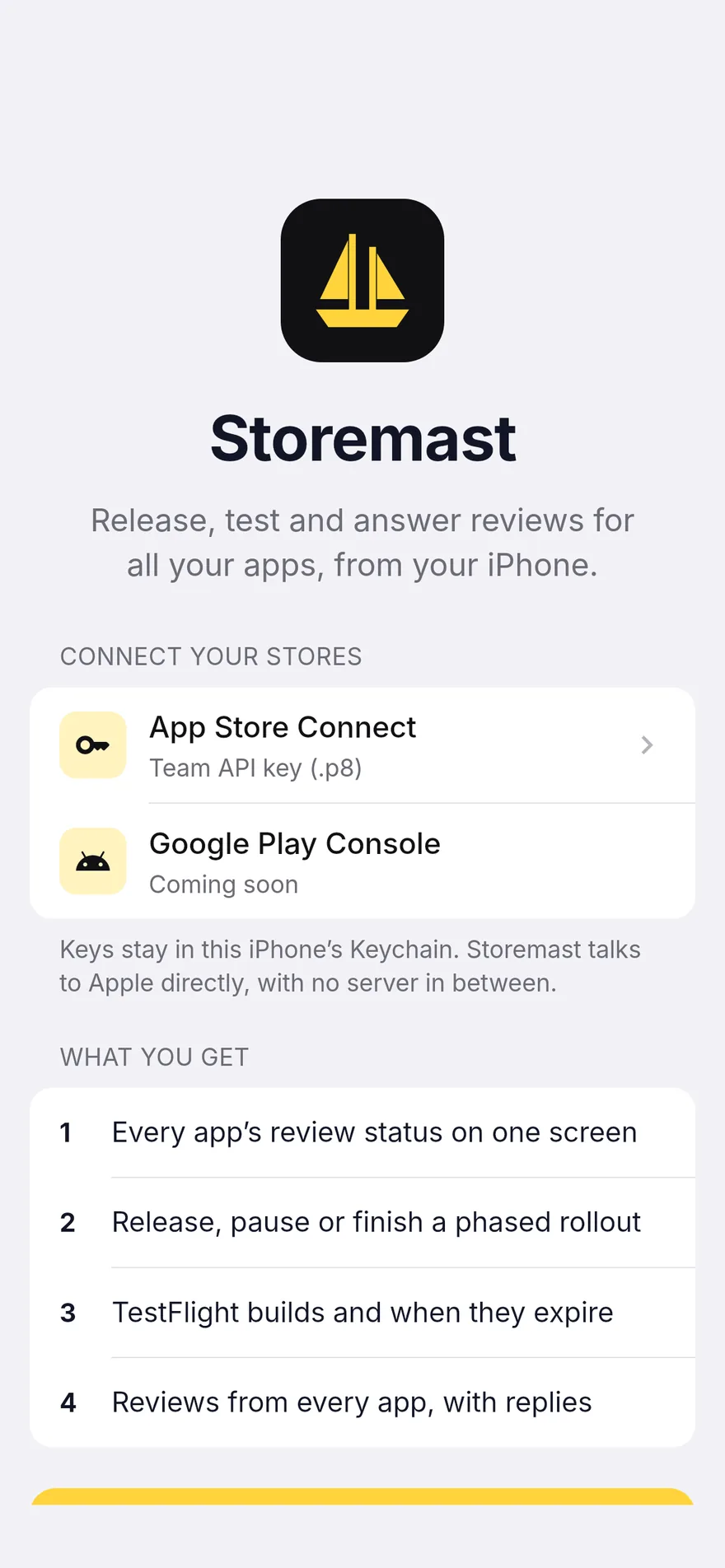
Storemast is built to show both stores with the same screens: every app's status, releases, rollouts, beta builds and reviews. Today it works with App Store Connect only. Google Play support is planned and marked as coming soon in the app; it isn't available yet.
Until then, if you manage iOS apps, see what Storemast does for App Store Connect. For your first Android releases, read Google Play release notes and staged rollouts.
Questions
How much does a Google Play developer account cost?
Google charges a one-time registration fee when you create a developer account, not a yearly fee. Check the current amount on Google's sign-up page, because it can vary and change.
What's the difference between a personal and an organization account?
A personal account is for an individual; an organization account is for a company and asks for business verification, such as a D-U-N-S number. Google applies some extra requirements to new personal accounts, including a testing period before you can publish to production.
Do new personal accounts need testers before publishing?
At the time of writing, Google requires new personal developer accounts to run a closed test with a minimum number of testers for a set period before applying for production access. Check Play Console Help for the current numbers, because Google has changed them before.
What is the Google Play equivalent of TestFlight?
Testing tracks. Internal testing is closest to TestFlight internal testing; closed and open testing cover groups of external testers and public betas.
How do I give a tool API access to Play Console?
Create a service account in a Google Cloud project, enable the Google Play Android Developer API, then invite the service account's email address in Play Console's Users and permissions with only the permissions it needs.
Does Storemast support Google Play?
Not yet. Storemast works with App Store Connect today. Google Play support is planned, using the same screens, but it isn't available.