 Storemast
Guide
TestFlight builds expire after 90 days: what happens and how to stay ahead
By the Storemast team · Last updated
TL;DR
Every TestFlight build is available for 90 days from upload. Then it expires: testers can't install it any more, and you can't extend it. The fix is always a new build with a higher build number. Keep an eye on the oldest build each group relies on and upload a fresh one a week or two before day 90.
TestFlight is how most iOS teams get builds to colleagues, clients and beta testers. It has one rule that catches nearly everyone eventually: builds don't last forever. If you maintain several apps, or a beta runs longer than a quarter, sooner or later a tester will tell you the app “stopped working”. This guide explains what's going on and how to stay ahead of it.
The 90-day rule
A build uploaded to App Store Connect can be tested in TestFlight for 90 days from the day it was uploaded. The clock starts at upload, not when you add testers or when the build finishes beta review. When it runs out, the build expires.
That applies to internal and external testing alike, and to every app on your team. There's no setting to change it and no way to extend a build.
What happens when a build expires
- Testers can't install it any more. TestFlight shows the build as expired.
- Testers who relied on it are stuck until you give them a newer build.
- Your App Store version is unaffected. Expiry only concerns TestFlight. A version you released on the App Store keeps working.
- The build record stays in App Store Connect, marked as expired, for your history.
Why it bites teams with several apps
With one app in active development, you upload often and builds rarely get old. The trouble starts with:
- Quiet apps that only get an update every few months, while a client or tester still uses the last build.
- Long betas where a stable build is left in place for external testers.
- Internal tools distributed through TestFlight, which nobody thinks of until they stop installing.
- Many apps, where checking each app's TestFlight page for days remaining is a chore nobody does.
How to stay ahead
- Know the oldest build each group uses. The build that matters is the newest one a group has, because that's what testers install. If that build is 80 days old, the group is 10 days from losing access.
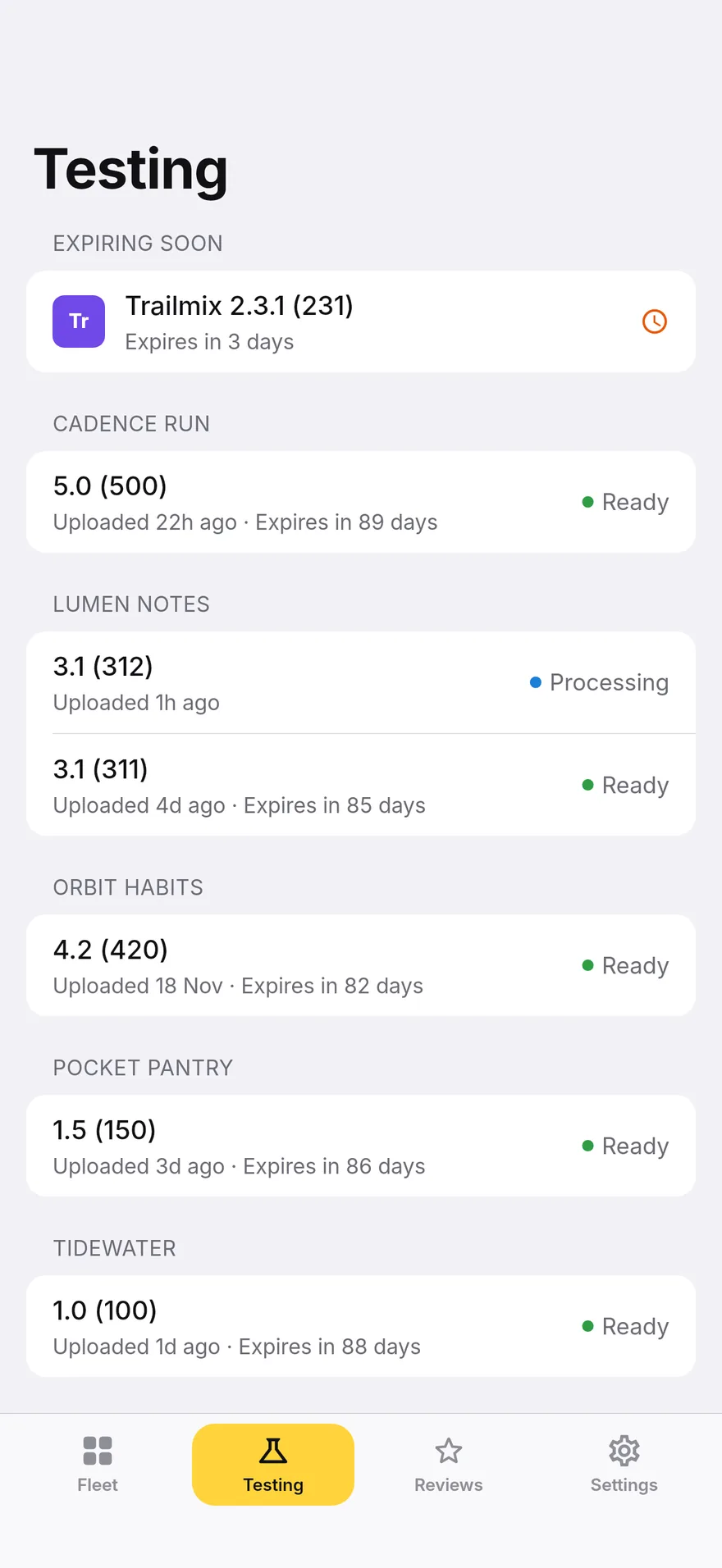
- Check weekly. A Monday look at builds with less than two weeks left is enough. In Storemast, the Testing tab's Expiring soon section lists every build with 7 days or less left, across all your apps.
- Upload a fresh build in time. Bump the build number, archive and upload as usual, from Xcode or your CI. A rebuild of the same code is fine.
- Allow for processing and review. New builds take a little while to process. For external testers, the first build of a version may need TestFlight beta review, so start a week or so before expiry rather than on the last day.
- Add the new build to the same groups. Internal testers can get new builds automatically if you set that up; check external groups yourself.
- Let old builds go. Once testers have moved on, the old build can simply expire, or you can expire it yourself.
Automating fresh builds
If an app rarely changes but testers depend on it, a scheduled CI job can upload a new build every month or two. The build number has to go up each time, so derive it from the date or the CI run number. Keep the job on a branch that's known to be good, and make sure it uses an App Store Connect API key with a role that can upload builds (see creating an API key; use a separate key from the one on your phone).
Reading build states
| State in Storemast | What it means | What to do |
|---|---|---|
| Processing | Apple is still processing the upload. | Wait. It usually takes minutes, sometimes longer. |
| Ready | Processed and testable, with days left until expiry. | Nothing, until it's close to 90 days. |
| Failed | Processing failed or the build was found invalid. | Check the email from Apple and App Store Connect for the reason, fix and upload again. |
| Expired | Past 90 days, or expired by hand. | Upload a new build if anyone still needs it. |
Common questions from testers
When a tester says the beta “disappeared” or “won't open”, ask which build they have. If it's old, it has almost certainly expired: send them the new build through TestFlight and they're back. To stop it happening again, put build expiry on your weekly checklist, or let Storemast's Testing tab do the remembering.
Questions
Can I extend a TestFlight build past 90 days?
No. The 90 days run from upload and can't be extended. Upload a new build to keep testing.
Does uploading a new build reset the expiry of the old one?
No. Each build has its own 90 days from its own upload. The new build starts a fresh 90 days.
What do testers see when a build expires?
The build is marked as expired in the TestFlight app and they can't install it any more. When you add a newer build to their group, TestFlight offers that one instead.
Does an expired build affect my App Store version?
No. Expiry is about TestFlight testing. A build you've already submitted and released on the App Store keeps working for your customers.
Can I expire a build early?
Yes. In App Store Connect you can expire a TestFlight build yourself, for example if it has a serious bug or shouldn't be tested any more.
How do I see which builds are about to expire?
App Store Connect shows days remaining per build in each app's TestFlight section. Storemast lists builds from all your apps and pulls those with a week or less left to the top.