 Storemast
Guide
Every App Store version status explained
By the Storemast team · Last updated
TL;DR
A version usually moves Prepare for Submission → Waiting for Review → In Review → Pending Developer Release (if you release manually) → Processing for Distribution → Ready for Distribution. The statuses that need you are Rejected, Metadata Rejected, Invalid Binary, Developer Rejected (if you pulled it) and Pending Developer Release.
App Store Connect labels every version of your app with a status. Most of the time it's moving along on its own; a few statuses mean you have to do something. This guide lists them all, in the order a version usually goes through them, with what each means and what to do. (Statuses are for App Store versions; TestFlight builds have their own states, covered in TestFlight build expiry.)
The usual path
- Prepare for Submission: you're filling in the version and choosing a build.
- Waiting for Review: submitted, in Apple's queue (more on Waiting for Review).
- In Review: an App Review reviewer is looking at it.
- Pending Developer Release: approved; waiting for you to release (only if you chose manual release; more on Pending Developer Release).
- Processing for Distribution: Apple is getting the release ready for the store.
- Ready for Distribution: live on the App Store.
Before review
| Status | What it means | What to do |
|---|---|---|
| Prepare for Submission | A new version exists and can be edited: build, screenshots, What's New, release options. | Finish the version and submit it for review. |
| Ready for Review | Everything needed is filled in, but it hasn't been sent to App Review yet; for example, it's been added to a submission that hasn't been submitted. | Submit the review submission. |
| Waiting for Export Compliance | The build needs export compliance information about its use of encryption. | Answer the export compliance questions for the build. Setting ITSAppUsesNonExemptEncryption in Info.plist avoids the question for future builds. |
| Developer Rejected | You removed the version from review yourself. | Make your changes and submit again. |
In review
| Status | What it means | What to do |
|---|---|---|
| Waiting for Review | Submitted and in the queue. Most information is now locked. | Wait (see how long review takes). To change something, remove it from review (it becomes Developer Rejected). |
| In Review | A reviewer is testing the app. App Review may contact you through App Store Connect. | Keep an eye on messages and make sure any demo account still works. |
Rejections
| Status | What it means | What to do |
|---|---|---|
| Rejected | App Review found a problem with the app or build, citing an App Review Guideline. | Read the message in App Store Connect. Fix the issue (often a new build), or reply if you think they misunderstood, then resubmit. You can appeal to the App Review Board if you disagree. |
| Metadata Rejected | The problem is in your App Store information (screenshots, description, age rating and so on), not the binary. | Fix the metadata and resubmit; the same build can be used. |
| Invalid Binary | The build didn't meet Apple's technical requirements. | Check the email from Apple for the reason, fix it and upload a new build. |
Apple's API doesn't include App Review's messages. Storemast flags rejected versions under Needs you and links you to App Store Connect to read the message.
After approval
| Status | What it means | What to do |
|---|---|---|
| Pending Developer Release | Approved. You chose to release it manually. | Release it when you're ready, from App Store Connect or from your iPhone. |
| Pending Apple Release | Approved, and waiting for Apple to release it: for example a scheduled release date that hasn't come yet. | Nothing; it releases on its own. |
| Accepted | A newer API status for an approved version that hasn't moved on to release yet. | Usually nothing; it moves on by itself. |
| Pending Contract | Approved, but your agreements, tax or banking information in App Store Connect need attention (for example the Paid Apps agreement). | The Account Holder should check Business (Agreements, Tax, and Banking). |
| Processing for Distribution | Released; Apple is preparing it for the store. Older name: Processing for App Store. | Wait. It usually takes a short while. |
| Ready for Distribution | Live on the App Store. Older name: Ready for Sale. With phased release, automatic updates roll out over 7 days. | Watch crash reports and reviews; see phased release. |
Later statuses
| Status | What it means | What to do |
|---|---|---|
| Replaced with New Version | This version was live, and a newer version has since been released. | Nothing. It stays in your version history. |
| Removed from Sale / Developer Removed from Sale | The app isn't available on the App Store, removed by Apple or by you. | If you didn't remove it, check App Store Connect and your email from Apple. |
Which statuses need you
Out of all of these, only a handful ask for action: Rejected, Metadata Rejected, Invalid Binary, Pending Developer Release, Waiting for Export Compliance and Pending Contract. The rest move along without you.
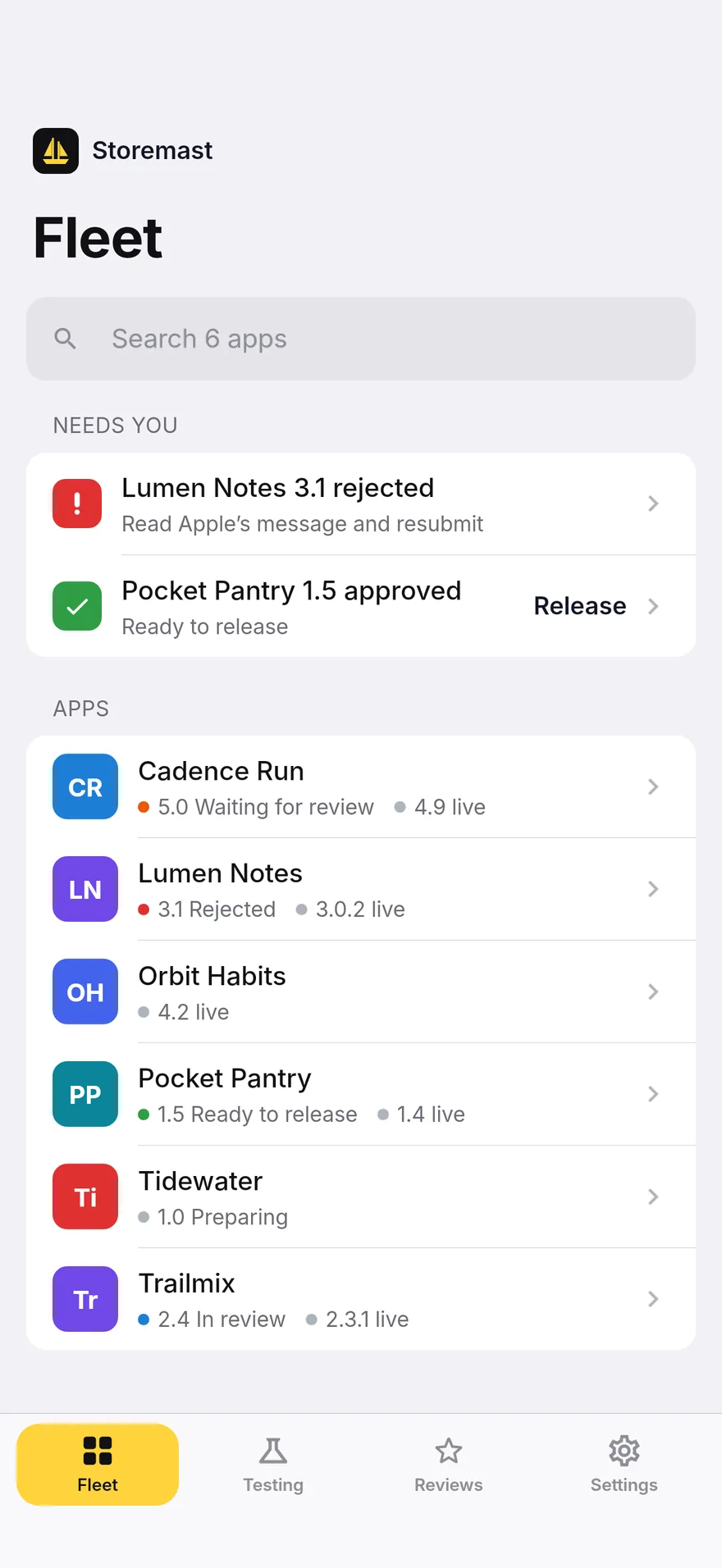
That's the idea behind Storemast's Fleet screen: it maps these statuses to a few plain words (Preparing, Waiting for review, In review, Rejected, Ready to release, Scheduled, Processing, Live) and puts rejections and approved versions at the top, across every app you ship.
Status names in the API
If you script against the App Store Connect API, versions carry an appVersionState (newer) and an appStoreState (older, deprecated). Values are upper case with underscores, for example PENDING_DEVELOPER_RELEASE, READY_FOR_DISTRIBUTION in the newer field and READY_FOR_SALE in the older one. Treat unknown values gracefully; Apple adds and renames states over time.
Questions
How long does Waiting for Review last?
It varies with Apple's queue and your app. Apple says most submissions are reviewed within 24 hours, but there's no guaranteed time. See our guide to App Store review time.
What's the difference between Ready for Sale and Ready for Distribution?
They mean the same thing: the version is live on the App Store. Apple renamed Ready for Sale to Ready for Distribution, and the older name still appears in some places and in older API fields.
Does Metadata Rejected need a new build?
No. Metadata Rejected means the problem is in your App Store information, such as screenshots or description. Fix the metadata and resubmit the same build.
Can I edit my app while it's Waiting for Review?
Most version information is locked once submitted. To change it, remove the version from review (it becomes Developer Rejected), edit, and submit again. Your place in the queue starts over.
Why can't I see the rejection reason in tools that use the API?
Apple's App Store Connect API doesn't include App Review's messages from the Resolution Center. Read and reply to them in App Store Connect.
How do I see the status of all my apps at once?
App Store Connect's Apps page shows each app's status. Storemast's Fleet screen shows every app's live and in-progress version on your iPhone, with rejections and approved versions at the top.